

Showing posts with label Tech Tips & Tricks. Show all posts
Showing posts with label Tech Tips & Tricks. Show all posts
Thursday, April 18, 2019
Stickin' It To The Mac With This Tech Tip


Friday, April 5, 2019
It was a STUPID idea... but it worked!
What do you do when you've neglected your liquid cooled system by not flushing it properly? When you finally attempt to flush the system properly but you still notice junk in the system, what do you do next? Youtuber JayzTwoCents may have the answer you're looking for. Check out the video:

Follow me on Twitter ITSecPr0
Tuesday, March 12, 2019
Five Tips For Better Digital Security

Wednesday, August 16, 2017
Breathing New Life Into A Damaged Laptop
Want to give a damaged laptop a new lease on life without going the usual route? How about turning it into a media PC? Sound good? Then you'll appreciate the following video:
Wednesday, March 9, 2016
Tech Tips: Quick Instagram tips and tricks

Want to have some fun with Instagram? Check out these tips:
Follow me on Twitter @ITSecPr0

Monday, February 29, 2016
Resurrecting Technology From The Dead...With An Oven?!?!

If your SSD or graphics card kicks the bucket, is there a way to bring it back from the dead using a kitchen oven? Watch the video below to find out:


Thursday, January 21, 2016
Wednesday, January 20, 2016
Tech Tips: Five Android Apps You Should Be Using!
Are you looking for new apps to help you be more productive? Look no further, Techno Buffalo's Mark Burstiner shares five apps that you'll be glad you use -- when you use them.
For more cool things in tech follow me on Twitter @ITSecPr0
Shop Amazon Echo - Always Ready, Connected, and Fast. Just Ask
For more cool things in tech follow me on Twitter @ITSecPr0
Shop Amazon Echo - Always Ready, Connected, and Fast. Just Ask
Thursday, October 29, 2015
Tech Tips: Hacking w/ Yard Stick One...
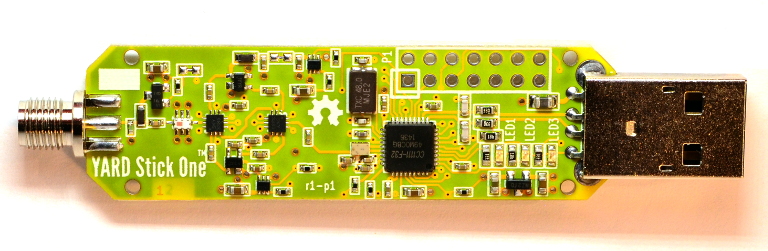 |
| picture source: greatscottgadgets.com |
Feel like getting a little naughty? Then check out these cool hacking tips:

Wednesday, October 28, 2015
Tech Tips: How To Stream Steam Games to Chromebook
Ever thought about playing games on your Chromebook? Check out this tip so find out exactly how it can be done:

Tech Tips: Disabling The Suspend Feature on VMware Virtual Machines
If you've ever needed to disable the suspend feature on your virtual machines in VMware but are sure how to go about doing it, look no further:

For more tech tips subscribe to this blog and follow me on Twitter @ITSecPr0
Monday, September 21, 2015
What Is Cisco Mobility Express?
In the following video Cristian Raducanu the project manager for Cisco's Mobility Express Solution explains the technology and demonstrates how it works:

Monday, August 31, 2015
Tech Tips: 10+ Tips and Tricks for Galaxy S6 Edge Plus
What to have some fun with your Galaxy S6 e Edge Plus? Check out this video:

Thursday, August 20, 2015
Tech Tips: How to Install Chrome OS on PC
Watch today's tech tip for a way to preserve the old computer you have sitting around collecting dust:

Follow me on Twitter @ITSecPr0
Tuesday, August 4, 2015
Moving To Windows 10? You'll Need To Make These Security Changes!
1) Take Control- take more of a hands-on approach to your Windows 10 install by selecting custom install where you can manually control what options are enabled. If you've already installed Windows 10 have no fear you can change the default privacy settings.
2) Let the disabling begin- Under the 'Privacy' section in settings (Start menu> Settings> Privacy) disable (by turning off) the following options:
General Tab
- Turn off "Let apps use my advertising ID for experiences across apps (turning this off will reset your ID)" option.
Location Tab
- As a rule of thumb I'd turn off all apps in this section unless there is a need for an app to know your location and turn it off when not in use.
If you'd like to know more features to disable for even greater privacy control, check out TechRepublic's article Windows 10 violates your privacy by default, here's how you can protect yourself
Follow me on Twitter @ITSecPr0

sources:
http://windows.microsoft.com/en-us/windows-10/change-privacy-settings-in-windows-10
http://www.techrepublic.com/article/windows-10-violates-your-privacy-by-default-heres-how-you-can-protect-yourself/?tag=nl.e101&s_cid=e101&ttag=e101&ftag=TRE684d531
Friday, July 31, 2015
Windows 10 on Cheap Tablets / PCs
If you've ever wondered if Windows 10 will work on a inexpensive tablet? Youtuber Lon Seidman has an answer you'll enjoy!

Monday, July 27, 2015
Choosing between a 2 drive and 4 drive NAS
If you're thinking about purchasing a NAS but need to compare a 2 drive and a 4 drive and/or need to know a little more about RAID 5 and RAID 10, the above video may help.
Follow me on Twitter @ITSecPr0

Monday, July 20, 2015


Thursday, July 2, 2015
Unclog and Speed Up Your Mobile Device

Mobile devices should make our lives easier since they allow us to take care of our day to day business while on the go. Over time the same devices created to be beneficial to us can become burdensome as junk files increase bogging down the system. Dips in speed and storage space may become noticeable as more apps are added to the device. So what is someone to do when their beloved smartphone or tablet drops in performance? Here's one solution to this problem.
Out of the many choices for performance enhancing apps I decided to go with the All-In-One Toolbox by AIO Toolbox Inc. I personally use this app on most of my tablets and smartphones.
Getting Started With All-In-One Toolbox
Using the All-In-One Toolbox app is pretty intuitive as its UI has a clean design, and is straightforward to use. When you start the app, the main screen provides information on your ROM, RAM, and SDCard, so you can clearly see how much space is available in each section. On the lower half of the screen there are three options the user can choose from -- 'Clean' allows the user to clean up junk files, 'Boost' provides options to give the system memory a boost, and 'Toolbox' provides other features like uninstalling apps, sending apps to the sdcard and file manager.
Good Riddance Junk Files!
Tapping on the clean icon begins a scan for junk files. When the scan has completed you'll notice the different categories where junk files were located and the amount of space they occupy in each category. If there is a green check mark in the box to the right of a category or file that means it has been selected for deletion -- to skip simply uncheck the box. To begin the process of ridding the system of unwanted junk files tap 'clean' at the bottom of the screen.

Boosting Memory
Clicking the boost icon takes you to a screen where running apps and services can be stopped. Each app or service listed displays how much memory, cpu and battery is currently in use by the app along with a check mark box to the far right. When selected a green check mark appears in the box and tapping on 'Kill Selected' at the bottom of the screen will stop the selected item from running freeing up memory. *If you are unsure about an app or service a good rule of thumb is to not kill it. Stick apps you installed that you don't need running in the background.


What's In That Toolbox?
The toolbox has a lot of useful tools but for this article we'll only deal with a few tools that can help increase storage space and speed --batch uninstall, app2sd and boot speedup. Batch uninstall allows the uninstalling of multiple apps instead of one at a time. App2sd sends an app currently residing on the mobile device's internal storage to the SDcard freeing up internal storage space. Boot speedup is a function where specific apps can be prevented from starting up when the device boots. This speeds up boot time as only necessary apps start at boot time. On the boot speedup screen apps are listed and to the far right of the app is an enable or disable toggle switch. When switched to the enabled position that specific app will start when the device boots. When switched to the disable position the app will not start when the device boots, instead it will run when you click on the app to use it.

If you notice a drop in the performance of your mobile device you may want to give the All-In-On Toolbox app a try.
Follow me on Twitter @ITSecPr0
Monday, June 29, 2015

Subscribe to:
Posts (Atom)